Image fact-checking 101.
With the massive amount of imagery on the web, it’s often difficult to know, at first glance, where an image is from or how it’s been used online. But fact-checking an image is simpler than you might think. Once you’ve searched by image, you can use the “Time” drop-down menu to see when and where it’s been published.
Let’s say you find an image in a tweet about a blizzard in Chicago in 2013. When you search Google for this image, you’ll see that it’s been used a lot.
Click Tools and select Time on the drop-down menu to verify when and where a photo has appeared online.
Uncovering your image’s backstory.
Knowing all the places a photo has been used or finding images that are similar to it can help you get the right visuals for your story. There are two easy ways to learn more about images and how they’re being used online.
Step 1
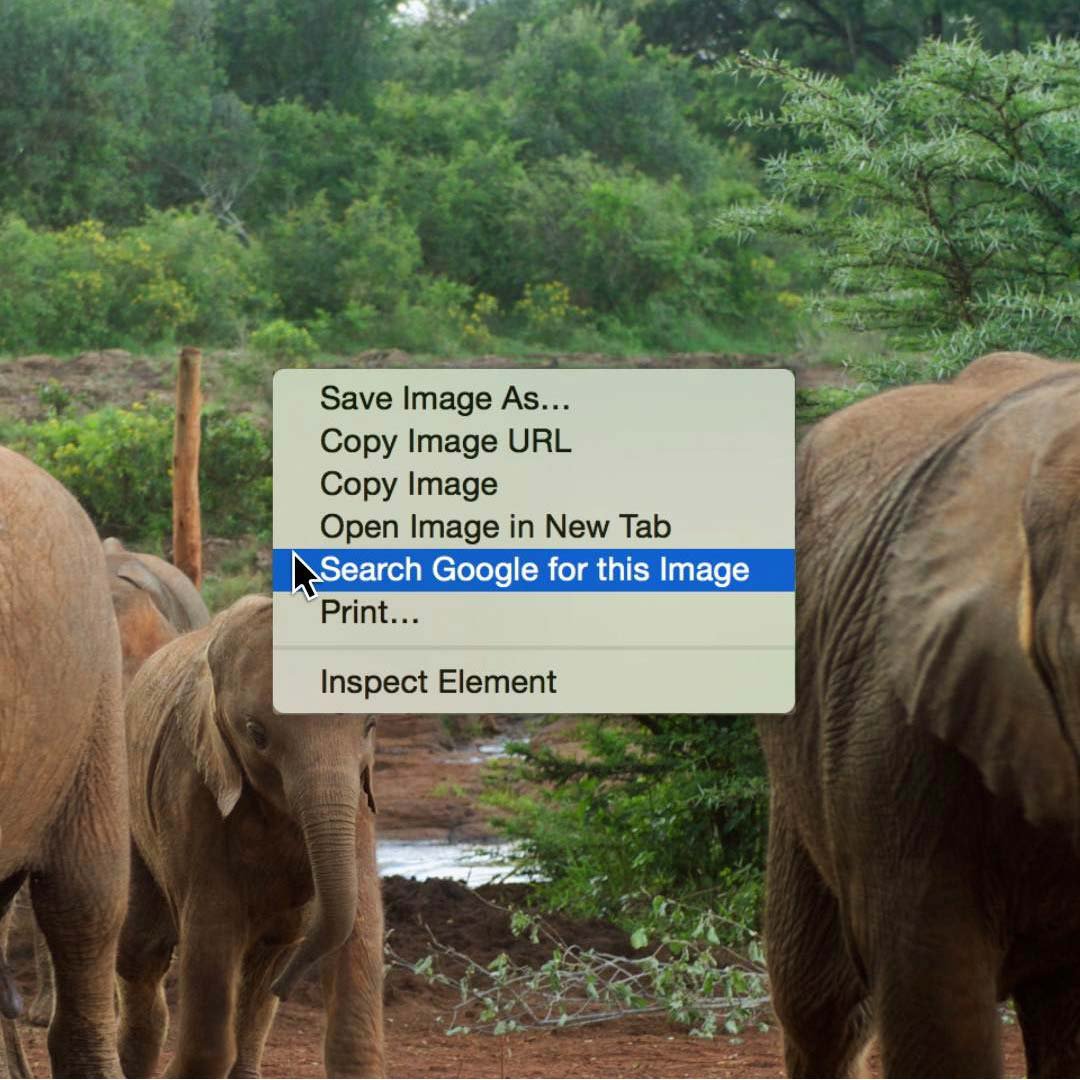
Right-click on your image and select Search Google for this Image.
Step 2
The results page will show you the image size and where else it may have appeared.
Step 3
You can also go to images.google.com
Step 4
Click the camera icon, and either upload the image from your computer, or input the image URL to search for that image.
